Abloomify Chrome Extension Deployment Guide
June 16, 2026
Walter Write
20 min read

This guide walks you through deploying the Abloomify Chrome extension to your managed browsers. We cover three methods: the Google Admin console (any OS), the MDM configuration profile (macOS), and Windows Group Policy. All of them force-install the extension silently for your end users and lock it on.
Complements the device agent
The Chrome extension is a companion to the Abloomify device agent, not a replacement. The device agent reports high-level app and technology-usage metrics at the OS level. The extension extends that picture inside the browser, reporting which web apps and tools are in active use. Like the agent, it captures high-level technology-usage signals only. It never reads page content, form fields, or what you type.
macOS vs Windows
The methods below are not all cross-platform, so pick by the platform you manage:
- macOS: use the Google Admin console, or push the Chrome profile (
.mobileconfig) through your MDM (Method 2). On Jamf Pro, deploy the policy as a plist payload instead of uploading the.mobileconfig. The.mobileconfigis an Apple format and applies to Macs only. - Windows: the
.mobileconfigdoes not apply. The simplest path is the Abloomify device agent's "with Chrome extension" installer variant, which force-installs the extension for you (see the Windows install guide). Otherwise, use the Google Admin console or Chrome Group Policy.
The Google Admin console (Method 1) is browser-level and works on any OS.
Contents
- What the extension does (and does not do)
- Before you begin
- The values you will need
- Method 1: Push the Chrome extension via the Google Admin console (any OS)
- Method 2: Push the Chrome profile via MDM (macOS)
- Method 3: Push the Chrome extension via Group Policy (Windows)
- Verify installation
- Troubleshooting
- FAQ
- Get help
What the extension does (and does not do)
Before you push anything to your fleet, it helps to know exactly what the extension collects. Abloomify is privacy-first by design, and the extension holds the same line as the device agent.
The extension does NOT:
- Read page content or the text of the pages you visit. It does not scrape article text, document bodies, or message threads.
- Capture form fields, passwords, or anything you type into a page. There is no keylogging and no input capture in the browser.
- Take screenshots or record browser tabs. The extension never captures the rendered page.
The extension does collect high-level, technology-usage signals:
- Which web apps and tools are actively in use, so usage of browser-based software shows up alongside native app usage.
- High-level activity signals such as active tab changes and time-in-use, used as an intensity-of-use measure.
- Basic context needed to attribute usage to the right user and device.
The result is a single, privacy-first view: the device agent measures how native technology is used, and the extension measures how browser-based technology is used. Neither one reads your content. For the full data boundary across the platform, see the central Abloomify device agent guide.
Before you begin
You will need the following:
- A paid Abloomify subscription with admin access to the Abloomify console.
- The Abloomify Chrome profile (
.mobileconfig), downloaded from the Abloomify console, if you use the MDM profile method on macOS (the.mobileconfigis an Apple format and does not apply to Windows). - For the manual method, administrator access to your Google Admin console (Chrome Enterprise) or another enterprise browser-management tool that supports extension policies.
- Google Chrome managed on your fleet, either through your MDM (for the profile method) or enrolled in Chrome Enterprise (for the Admin console method).
Note: Your update URL is specific to your company. Get your exact values, the extension ID and your company update URL, from the Abloomify console under Configs → Integrations → Device Agents, in the Chrome extension card ("Show Setup Values"). The downloadable Chrome profile already contains them, so the profile method needs no manual entry.
The values you will need
Whichever method you choose, the deployment comes down to the same two facts: the extension ID and your company-specific update URL. The Abloomify Chrome profile sets a small, specific set of Chrome managed policies. If you deploy manually, you enter these by hand; if you push the profile, your MDM applies them for you.
Where to get your values: in the Abloomify console, go to Configs → Integrations → Device Agents and open the Chrome extension card. "Show Setup Values" shows your extension ID and your company update URL (
YOUR_UPDATE_URL below). The install source (YOUR_INSTALL_SOURCE) is the https:// host of that update URL followed by /*. Both values are also written verbatim into the downloadable Chrome profile, so you can copy them from there.| Policy field | Value |
|---|---|
| Extension ID | ghahjllpbnbbfogpjdnalhijjbfkllad |
| Update URL | YOUR_UPDATE_URL |
| Installation mode | force_installed |
| Minimum version required | 1.2.9 |
| Override update URL | Enabled (the extension updates from the Abloomify URL above, not the Chrome Web Store) |
| Install sources | YOUR_INSTALL_SOURCE |
The profile expresses these through standard Chrome managed-policy keys:
ExtensionInstallForcelistentry:ghahjllpbnbbfogpjdnalhijjbfkllad;YOUR_UPDATE_URL(the extension ID and update URL joined by a semicolon, which is exactly the format the Google Admin console expects for a self-hosted force-install).ExtensionInstallSources:YOUR_INSTALL_SOURCE, which allows the extension to be served from the Abloomify-hosted source.ExtensionSettingsforghahjllpbnbbfogpjdnalhijjbfkllad:installation_modeset toforce_installed,update_urlset to the Abloomify URL,override_update_urlenabled, andminimum_version_requiredset to1.2.9.
Note: Because
override_update_url is enabled, Chrome fetches the extension and its updates from the Abloomify-hosted update.xml, not from the Chrome Web Store. This is normal for a privately distributed enterprise extension.Method 1: Push the Chrome extension via the Google Admin console (any OS)
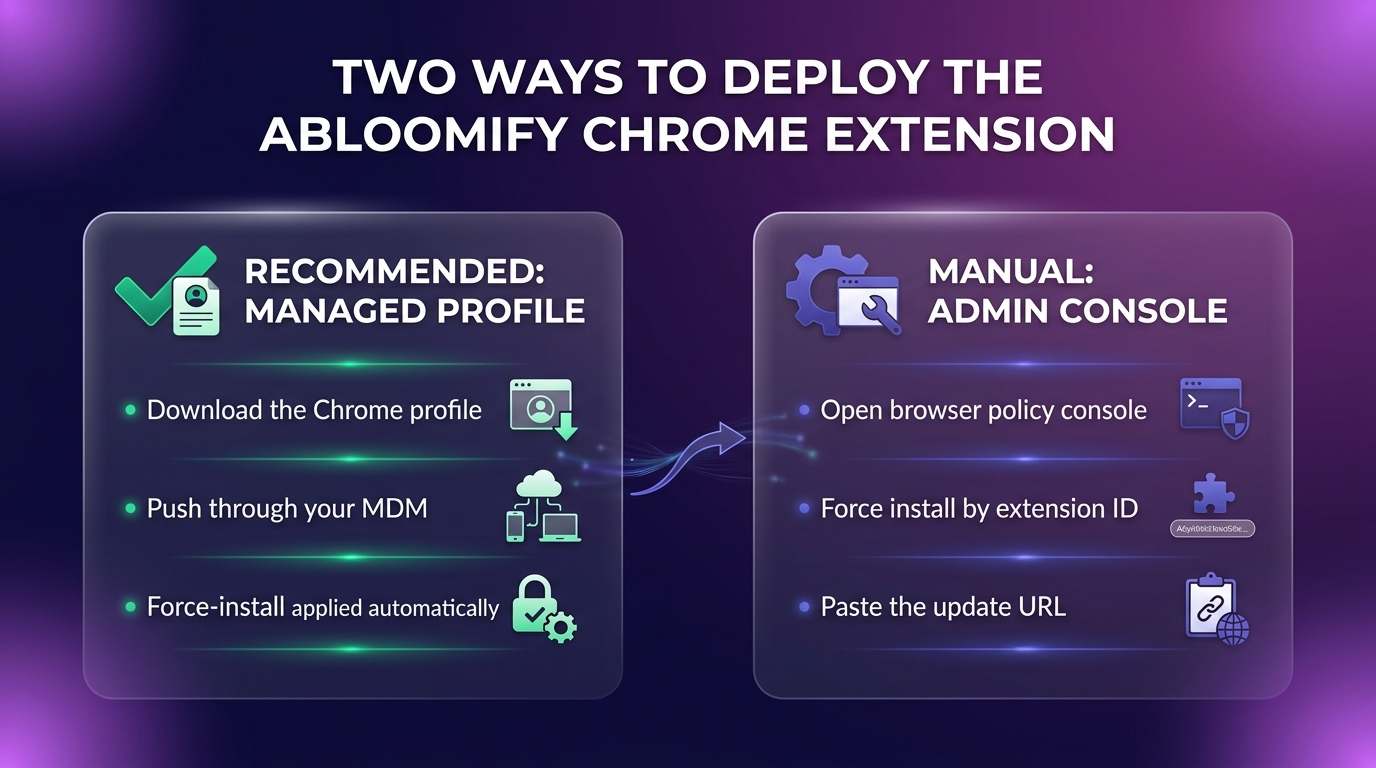
If you manage Chrome through the Google Admin console (Chrome Enterprise), force-install the extension as a self-hosted extension. This method works on any OS. You will use the exact extension ID and update URL from the table above.
- Sign in to the Google Admin console at admin.google.com with an administrator account.
- Go to Devices > Chrome > Apps & extensions > Users & browsers.
- Select the organizational unit you want to target. To cover everyone, leave the top-level OU selected.
- Click the + (Add) button in the bottom-right corner and choose Add Chrome app or extension by ID.
- Enter the extension ID:
ghahjllpbnbbfogpjdnalhijjbfkllad. - Because Abloomify hosts the extension privately (not on the Chrome Web Store), change the source from the Web Store to From a custom URL, and enter the update URL:
YOUR_UPDATE_URL. - After the extension is added, set its Installation policy to Force install. This prevents users from removing it.
- Click Save.
That covers it: a force-installed extension served from the Abloomify update URL. If your console exposes an Install sources or allowed install sources setting, add
YOUR_INSTALL_SOURCE to permit the self-hosted source.Important: Enter the extension ID and update URL exactly as shown, with no trailing spaces. A single mistyped character in the 32-character ID or the update URL will cause the install to fail silently, since Chrome will look for an extension that does not exist at that location.
Note: Chrome force-install policies apply to signed-in managed users (Users & browsers) as their browsers sync policy. Allow time for policy to propagate. You can speed up a test machine by visiting
chrome://policy and clicking Reload policies.Method 2: Push the Chrome profile via MDM (macOS)
This method applies to macOS only, since the Chrome profile is an Apple
.mobileconfig. It uses the same model as the macOS device agent: Abloomify provides the .mobileconfig, and you push it through your MDM as a custom configuration profile. On Windows, use the device agent's "with Chrome extension" variant or Method 1 instead. The profile carries a com.google.Chrome payload that force-installs the extension, so you do not type any policy values by hand.- In the Abloomify console, download the Abloomify Chrome profile (
.mobileconfig). - Upload it to your MDM as a custom configuration profile (the same workflow you use for the device-agent profile). Scope it to devices, not users. On Jamf Pro, skip this step and follow the Jamf Pro plist steps below instead.
- Save and let the profile propagate as devices check in.
That is the entire deployment. The profile sets
ExtensionInstallForcelist, ExtensionInstallSources, and ExtensionSettings exactly as listed above, so Chrome force-installs the Abloomify extension on every scoped device and locks it on. Users cannot remove it from chrome://extensions.This profile is delivered the same way as the device-agent profiles, so the per-MDM steps map cleanly to the guides you may already be following. If you push the device-agent profile through Microsoft Intune or Rippling, upload this Chrome profile through the same custom-profile workflow in your MDM and scope it to the same devices. Jamf Pro is the exception: do not upload the Chrome
.mobileconfig to Jamf Pro. Follow the Jamf Pro plist steps below instead.Note: The Chrome profile is independent of the device-agent profile. You can deploy both. The Chrome profile manages the browser extension; the device-agent profile manages the native macOS agent and its permissions. They do not overlap, and deploying one does not affect the other.
Important: A configuration profile sets machine-level Chrome policy. By default Chrome does not merge a machine-level
ExtensionInstallForcelist or ExtensionSettings with the same policy set for signed-in users in the Google Admin console: the machine-level value applies and the Admin console value is ignored on that Mac, and Chrome uninstalls any extension that is no longer on the effective force-install list. If you already force-install extensions through the Google Admin console (a password manager, for example), either add the Abloomify extension there as well (Method 1) instead of pushing a profile, or include your existing entries in the profile's policy so they are not dropped. chrome://policy shows the source of each policy: Platform for MDM, Cloud for the Admin console.Jamf Pro: deploy the Chrome policy as a plist payload
Jamf Pro does not deploy an unsigned custom
.mobileconfig as-is. It reads the file, rebuilds it from its own payload model, and re-signs it. The Abloomify Chrome profile carries two payloads (the com.google.Chrome policy that force-installs the extension, and the extension's own settings domain), and this rebuild can keep the second payload while dropping the first. The result is misleading: Jamf and the Mac both show the profile as installed, but Chrome never receives ExtensionInstallForcelist and the extension never appears. Re-uploading the same file does not change the outcome.Use Jamf's native mechanism for application preferences instead: a profile with an Application & Custom Settings plist payload for the
com.google.Chrome preference domain. It sets the same com.google.Chrome policy keys as the downloadable profile, which is what installs the extension. The profile's second payload (the extension's own settings domain) is a fallback copy of settings the extension normally receives from the Abloomify device agent, so you do not need to recreate it when the agent is deployed alongside.-
Get your values from the Abloomify console (Configs → Integrations → Device Agents, Chrome extension card, Show Setup Values). The dialog shows your company update URL and the ready-made force-install entry for the first array below. It does not show an install source: that is the
https://host of your update URL followed by/*(see The values you will need). Save the following ascom.google.Chrome.plist, replacingYOUR_UPDATE_URL(twice) andYOUR_INSTALL_SOURCE:<?xml version="1.0" encoding="UTF-8"?> <!DOCTYPE plist PUBLIC "-//Apple//DTD PLIST 1.0//EN" "http://www.apple.com/DTDs/PropertyList-1.0.dtd"> <plist version="1.0"> <dict> <key>ExtensionInstallForcelist</key> <array> <string>ghahjllpbnbbfogpjdnalhijjbfkllad;YOUR_UPDATE_URL</string> </array> <key>ExtensionInstallSources</key> <array> <string>YOUR_INSTALL_SOURCE</string> </array> <key>ExtensionSettings</key> <dict> <key>ghahjllpbnbbfogpjdnalhijjbfkllad</key> <dict> <key>installation_mode</key> <string>force_installed</string> <key>minimum_version_required</key> <string>1.2.9</string> <key>override_update_url</key> <true/> <key>update_url</key> <string>YOUR_UPDATE_URL</string> </dict> </dict> </dict> </plist> -
In Jamf Pro, go to Computers > Configuration Profiles and click New. Do not use the Upload button on this page; that is the
.mobileconfigimporter described above. -
On the General payload, name the profile (for example
Abloomify Chrome Policy), set Level to Computer Level, and set Distribution Method to Install Automatically. -
In the payload list, open Application & Custom Settings, choose Upload, and click Add.
-
Set Preference Domain to exactly
com.google.Chrome(capital C, nothing appended). Click Upload File and choose yourcom.google.Chrome.plist. Jamf shows the file's contents as XML for review. Confirm thatExtensionInstallForcelist,ExtensionInstallSources, andExtensionSettingsare all present and that your update URL and install source replaced the placeholders, then leave the contents unchanged. -
Open the Scope tab and add the same computers or computer groups you scoped the device-agent profile to. Scope to devices, not users.
-
Click Save. Jamf installs the profile on each Mac at its next check-in.
This profile can sit alongside other Chrome settings profiles you already push through Jamf Pro (for example one that sets a homepage); macOS combines the keys from every profile that manages the
com.google.Chrome domain. The one rule is that no two profiles may set the same key, because overlapping keys are not merged and only one value takes effect. If an existing profile already sets ExtensionInstallForcelist, ExtensionInstallSources, or ExtensionSettings (for example to force-install other extensions), add the Abloomify entries to that profile's plist instead of creating a second profile, and choose Distribute to All when you save so Macs that already have the profile receive the change; Jamf removes and reinstalls the profile on those Macs. If that profile was uploaded signed, Jamf cannot edit it: update the source file, re-sign it, and upload it again.Already uploaded the Chrome
.mobileconfig to Jamf Pro? Check what that profile actually delivered before adding the plist profile. On a scoped Mac, run defaults read "/Library/Managed Preferences/com.google.Chrome". If it reports that the domain does not exist, the imported profile carries only the extension's own settings domain, which does not overlap with com.google.Chrome: leave it in place and add the plist profile alongside it. If the domain does exist, the imported profile still sets some of these keys, so unscope it and let devices check in before saving the plist profile. Removing the imported profile is otherwise optional housekeeping, not part of the fix.Alternative for
.mobileconfig-only workflows: Jamf Pro deploys a signed .mobileconfig without rebuilding it and treats it as read-only. If your process requires uploading a profile file, sign the downloaded Chrome profile as-is (both payloads) on a Mac whose keychain holds a signing certificate, with its private key, that your Macs already trust (for example one issued by the Jamf Pro built-in certificate authority):security cms -S -N "YOUR_CERTIFICATE_COMMON_NAME" -i AbloomifyChromeExtension.mobileconfig -o AbloomifyChromeExtension-signed.mobileconfig
Upload the signed file with the Upload button on Computers > Configuration Profiles (the one case where that button is the right path), keep the signature when Jamf offers to remove it, scope it to devices, and save. Confirm on a Mac with the
defaults read check in Verify installation.Method 3: Push the Chrome extension via Group Policy (Windows)
On Windows, force-install the extension with Chrome's Group Policy, the Windows-native equivalent of the macOS profile. It uses the same extension ID and update URL from the table above. The same precedence rule applies as on macOS: a machine Group Policy force-install list overrides, rather than merges with, a list set for signed-in users in the Google Admin console, so include any extensions you already force-install there (see the note in Method 2).
Note: If you deploy the device agent's "with Chrome extension" installer variant, this is already done for you and you can skip this method. Use Method 3 when you want the extension on its own, without that variant.
Option A: Group Policy editor (Chrome ADMX)
This assumes the Chrome ADMX/ADML templates are loaded in your domain's Central Store. Google publishes them in the Chrome Enterprise bundle.
-
In the Group Policy Management Editor, open Computer Configuration > Policies > Administrative Templates > Google > Google Chrome > Extensions.
-
Open Configure the list of force-installed apps and extensions (
ExtensionInstallForcelist), set it to Enabled, click Show, and add:ghahjllpbnbbfogpjdnalhijjbfkllad;YOUR_UPDATE_URL -
Open Configure extension, app, and user script install sources (
ExtensionInstallSources), set it to Enabled, click Show, and addYOUR_INSTALL_SOURCE. -
Link the GPO to the OU with your target computers, then run
gpupdate /force(or reboot) on a test machine.
Option B: Registry (no ADMX templates)
If the Chrome ADMX templates are not loaded, set the same policies directly in the registry (per-machine, under
HKLM). Push them with GPO Preferences, an RMM, or any tool that writes registry keys as SYSTEM:| Registry key | Value name | Value |
|---|---|---|
HKLM\SOFTWARE\Policies\Google\Chrome\ExtensionInstallForcelist | 1 | ghahjllpbnbbfogpjdnalhijjbfkllad;YOUR_UPDATE_URL |
HKLM\SOFTWARE\Policies\Google\Chrome\ExtensionInstallSources | 1 | YOUR_INSTALL_SOURCE |
Each value is a string (
REG_SZ). The 1 is just the list position; add 2, 3, and so on for more entries.Optional (pin the update source and minimum version): to also enforce
override_update_url and a minimum version, as the macOS profile does, set the Extension management settings policy (ExtensionSettings) to this JSON, either through the ADMX policy of that name or as a single REG_SZ value at HKLM\SOFTWARE\Policies\Google\Chrome\ExtensionSettings:{
"ghahjllpbnbbfogpjdnalhijjbfkllad": {
"installation_mode": "force_installed",
"update_url": "YOUR_UPDATE_URL",
"override_update_url": true,
"minimum_version_required": "1.2.9"
}
}
This is the same policy set the macOS profile applies, expressed as Windows Group Policy: the extension force-installs from the Abloomify update URL and locks on, exactly as with Methods 1 and 2. Confirm it with the steps in Verify installation.
Verify installation
After policy or the profile reaches a device, confirm the extension installed and is managed.
-
On a target machine, open Chrome and go to
chrome://extensions. -
Confirm the Abloomify extension is present and that it shows as Installed by your administrator (or Installed by enterprise policy). A managed extension cannot be toggled off or removed by the user, which is the expected, locked-on state.
-
To confirm the policy is applied, open
chrome://policy. You should seeExtensionInstallForcelist(and, if you set them,ExtensionInstallSourcesandExtensionSettings) listed with the Abloomify extension ID and update URL as their values. Click Reload policies if the device has not yet picked them up. -
On macOS, if
chrome://policyshows none of those keys, check whether the policy reached the Mac at all before troubleshooting Chrome:defaults read "/Library/Managed Preferences/com.google.Chrome" ExtensionInstallForcelistIf this prints the Abloomify entry, the MDM delivered the policy and Chrome will pick it up. If it says the domain does not exist, thecom.google.Chromepayload never landed (on Jamf Pro, see the plist steps). -
Chrome attempts force-installs at startup and then on its periodic extension update check, which can be several hours apart. On a test machine, fully quit and relaunch Chrome after the policy lands to trigger the install immediately.
-
New browser-based technology-usage signals should begin appearing in the Abloomify console as devices report in.
Note: Force-installed extensions are intentionally locked on and cannot be disabled from
chrome://extensions. This is by design. It keeps managed coverage consistent and does not change what the extension collects.Troubleshooting
- The extension does not install. Recheck the extension ID and update URL for typos. The ID is
ghahjllpbnbbfogpjdnalhijjbfklladand must be exact. On the device, openchrome://policyand click Reload policies, then confirmExtensionInstallForcelistshows the Abloomify entry. - The profile shows as installed on the Mac, but Chrome has no
ExtensionInstallForcelist(Jamf Pro). Jamf rebuilt the uploaded.mobileconfigand dropped thecom.google.Chromepayload. On the Mac,defaults read "/Library/Managed Preferences/com.google.Chrome"reports that the domain does not exist. Deploy the policy as a plist payload using the Jamf Pro steps; uploading the same.mobileconfigagain repeats the problem. - Chrome reports it cannot fetch the extension. This usually means the update URL is wrong or the install source is not allowed. Confirm the update URL exactly matches the one in your downloaded profile, and add
YOUR_INSTALL_SOURCEto your install sources if your console requires it. - The extension installs but a user can disable it. The installation policy is not set to force install. In the Admin console, set the extension's installation policy to Force install (this matches the profile's
force_installedmode). A force-installed extension is locked on. - You see a minimum-version error. The profile pins
minimum_version_requiredto1.2.9. The Abloomify update URL serves a build at or above that version, so this should resolve on the next update check. Reload policies on the device to trigger it. - The device-agent data is fine but browser data is missing. The device agent and the Chrome extension are deployed separately. Confirm the Chrome profile or the Admin console force-install policy reached the device, in addition to the device-agent profile. Deploying the agent does not deploy the extension.
FAQ
Does the Abloomify Chrome extension read the pages I visit or what I type?
No. The extension does not read page content, does not capture form fields or anything you type into a page, and does not take screenshots of tabs. It reports high-level technology-usage signals, such as which web apps and tools are actively in use, the same privacy-first posture as the Abloomify device agent.
Should I use the profile or the Google Admin console?
On macOS, use the downloadable Chrome profile pushed through your MDM if you can. It carries the correct extension ID, update URL, and force-install settings for you, with nothing to type by hand. The one exception is Jamf Pro, which needs the same policy delivered as a plist payload rather than the
.mobileconfig; see the Jamf Pro steps. On Windows the profile does not apply, so use the device agent's "with Chrome extension" installer variant, a Chrome Group Policy, or the Google Admin console. The Google Admin console method works on any OS and is the manual option if you do not push browser profiles through an MDM.How do I deploy the Abloomify Chrome extension with Jamf Pro?
Do not upload the Chrome
.mobileconfig to Jamf Pro. Jamf rebuilds unsigned uploaded profiles and can drop the com.google.Chrome payload that force-installs the extension, leaving a profile that looks installed but does nothing. Create a new computer configuration profile with an Application & Custom Settings plist payload for the com.google.Chrome preference domain, containing ExtensionInstallForcelist, ExtensionInstallSources, and ExtensionSettings with your company update URL. The exact plist and click path are in the Jamf Pro section of Method 2.What is the Abloomify Chrome extension ID and update URL?
The extension ID is
ghahjllpbnbbfogpjdnalhijjbfkllad (the same for every customer). Your update URL is specific to your company; find it in the Abloomify console under Configs → Integrations → Device Agents, in the Chrome extension card ("Show Setup Values"), or simply download the Chrome profile, which already includes it.Why does the extension update from an Abloomify URL instead of the Chrome Web Store?
The Abloomify extension is privately distributed for enterprise customers, so it is self-hosted rather than published on the Chrome Web Store. The profile enables
override_update_url, which tells Chrome to fetch the extension and its updates from the Abloomify-hosted update.xml. This is standard for a privately distributed enterprise extension.Can a user remove the extension?
No. Both methods force-install the extension, so it appears as installed by your administrator and cannot be toggled off or removed from
chrome://extensions. Removal happens by changing the policy in your MDM or the Google Admin console, not by the end user.Do I still need the device agent if I deploy the extension?
Yes, for full coverage. The device agent measures how native technology is used at the OS level, and the extension measures how browser-based technology is used. They are companions, deployed separately, and neither reads your content. See the Abloomify device agent guide and the per-MDM guides for Jamf, Intune, and Rippling.
Get help
Need a hand? Email support@abloomify.com and we will help you get the Chrome extension deployed. For the platform-agnostic overview and the canonical privacy reference, see the Abloomify device agent guide.

Walter Write
Staff Writer
Tech industry analyst and content strategist specializing in AI, productivity management, and workplace innovation. Passionate about helping organizations leverage technology for better team performance.