How Abloomify Device Agents Work: A Privacy-First Overview
June 16, 2026
Walter Write
9 min read

What the Abloomify device agent is
The Abloomify device agent is a lightweight background app you deploy to company-managed computers through your MDM. Its job is to report high-level app and technology-usage metrics (which applications are in use, how much, and when a device is active) so Abloomify's workforce analytics can show team and company-level patterns without anyone reading employee content.
It is built privacy-first on purpose. Before getting into deployment, the most important thing to understand is what the agent does not do.
Privacy posture: what it does NOT do
These are hard limits enforced by the code itself, not policy promises. We verified each one against the actual source.
- No keylogger and no input monitoring. The agent does not capture which keys you press. There is no event tap, no keycode capture, and no global keyboard hook anywhere in the code. The only keyboard signal is an aggregate count, meaning "the active app received N keypresses in this interval." That is a measure of activity volume, never the content of what you type.
- No screenshots and no screen recording. The agent does not take screenshots, record the screen, or use any screen-capture API. It does not even request the macOS Screen Recording permission. Unlike some competitors, screen capture is simply not part of the product.
- No microphone and no camera. There is no audio or video capture. The macOS usage-description strings that an app would need just to prompt for the mic or camera are not present, so the agent cannot access them.
Privacy posture: what it does collect
The agent reports a small set of high-level activity and technology-usage signals:
- App lifecycle and usage events. App launch, terminate, activate or switch, hide, and unhide, recording the app's localized name and bundle ID only, with no content.
- System and session events. System sleep and wake, screen sleep and wake, session active, power-off, and device mount or unmount.
- Aggregate keystroke count per active app. An intensity-of-use signal (how many keypresses, not which ones).
- Mouse activity. Cursor coordinate samples plus the active app name and bundle ID.
- Basic device info. Username, hostname, and OS version.
Anything beyond these defaults, such as window-title visibility, is off by default and requires an explicit administrator opt-in in your company's Abloomify policy settings.
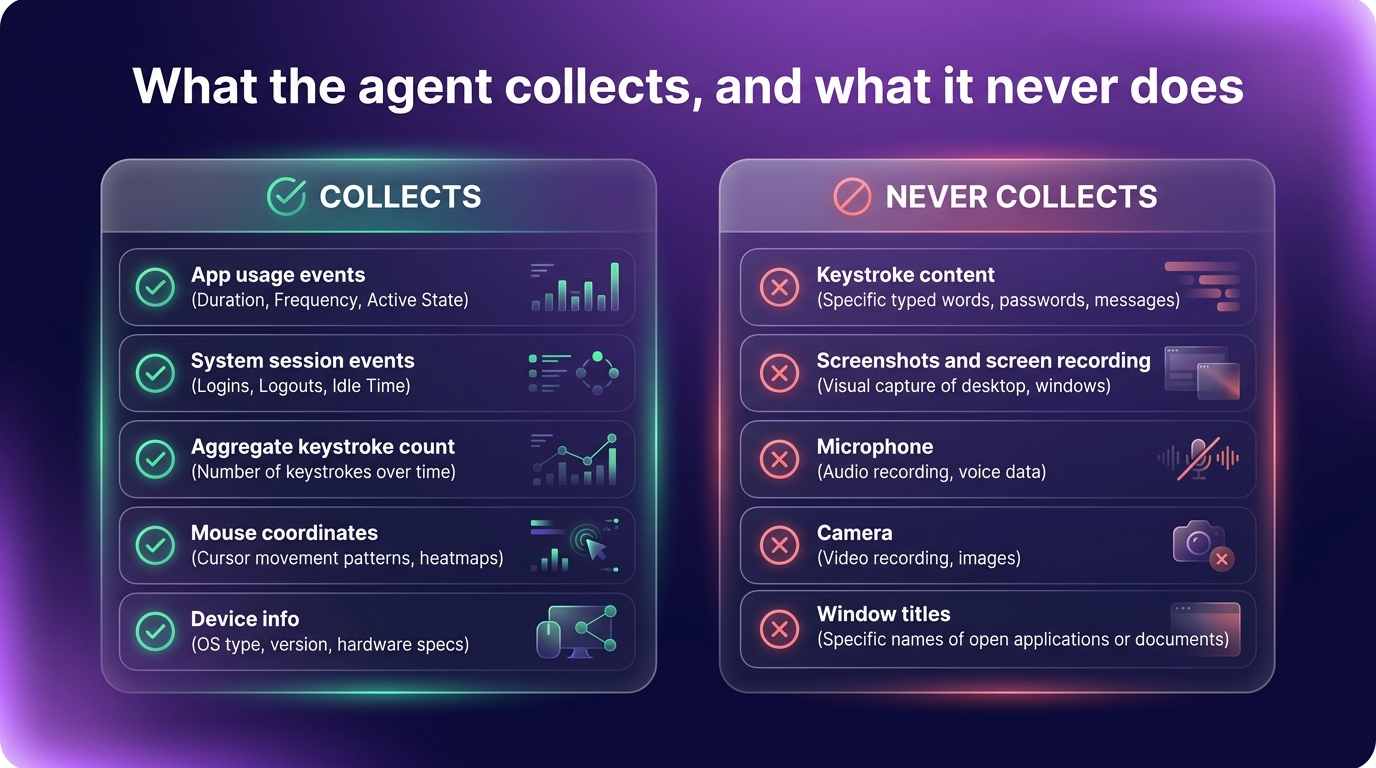
These signals are uploaded securely and aggregated into team and company-level views. The goal is to surface technology-usage patterns and capacity signals, not to surveil individual content.
How data flows from device to dashboard
The path is intentionally simple and one-directional:
- The agent runs as a background process on each managed device (no dock icon, no window).
- It records the high-level metrics above at modest intervals (for example, mouse samples every few seconds, with uploads batched roughly every ten minutes).
- Metrics are uploaded securely to Abloomify's cloud, authenticated per device with a certificate.
- Abloomify aggregates the data into team and company-level views in your dashboard, where leaders see workforce and productivity analytics without drilling into individual content.
Nothing flows the other way to read employee files or screens. The monitoring code reads no protected files at all.
macOS and Windows availability
Abloomify ships device agents for both macOS and Windows, so a mixed fleet is covered. This overview focuses on the macOS agent and its MDM deployment model, because macOS has the stricter permission and profile requirements (TCC, PPPC, and managed background items) that admins most often ask about. The privacy posture above applies across platforms: high-level usage metrics, never keystroke content, screenshots, mic, or camera.
The two macOS MDM profile variants
To deploy silently through MDM, macOS needs a configuration profile that pre-authorizes the agent's permissions (so end users are never prompted) and locks its background items. Abloomify ships two device-agent profiles. Deploy exactly one per company, never both.
| Profile | What it grants | Deploy when |
|---|---|---|
| Baseline | Accessibility (via PPPC) plus locked managed login items and background-notification suppression. No Full Disk Access. | Standard monitoring-only deployments. This is the default. |
| Full | Everything in Baseline plus Full Disk Access (via PPPC). | Only when the company also uses the optional Universal Sync feature. Deploy this instead of Baseline, not in addition. |
A few important clarifications:
- Accessibility in the Baseline profile is included for parity and window-level coverage without a re-deploy. The documented metrics above do not depend on it, and it does not enable input capture.
- Full Disk Access appears only in the Full profile, and it exists for one reason: the optional, opt-in Universal Sync feature, which reads local AI coding-session files (Cursor, Codex, Claude) that the user explicitly selects. The monitoring code never uses Full Disk Access. If you are not using Universal Sync, use the Baseline profile.
- Universal Sync is strictly opt-in. Nothing is auto-selected; a new user starts with zero sessions selected, discovery reads only session titles and timestamps (never content), and only the sessions a user chooses are uploaded.
Signed, notarized, and managed
A monitoring agent only earns trust if you can prove it is the real, unmodified build. Abloomify's agent is built for that:
- Developer ID signed and notarized. Production builds are signed with an Apple Developer ID Application certificate and notarized by Apple.
- Team ID pinning. Every profile's PPPC code requirement pins Abloomify's Apple Developer Team ID (
P4RHNGWC67) plus the Developer ID anchor, so only the official notarized fleet build matches and silently receives permissions. Development builds intentionally do not match. - Managed and locked background items. A Managed Login Items payload auto-approves and locks the agent's background items (the agent, its updater, and the Chrome telemetry helper, all matched by the same Team ID). The recurring macOS "can run in the background" notification is suppressed, and an end user cannot quietly disable the agent. Removal happens through your MDM.
Deploy via your MDM
The macOS agent deploys through any MDM that supports custom configuration profiles and custom app or package uploads. Abloomify provides step-by-step guides for the three most common setups. Each one walks you through enrolling devices, uploading the right profile (Baseline or Full), uploading the agent package, and verifying installation:
- Rippling: Deploy the Abloomify device agent via Rippling
- Jamf Pro: Deploy the Abloomify device agent via Jamf Pro
- Microsoft Intune: Deploy the Abloomify device agent via Intune
- Chrome extension (browser companion): Deploy the Abloomify Chrome extension
Using Kandji, Mosyle, Addigy, or another MDM? The same model applies: upload one device-agent profile as a custom configuration profile and the agent as a custom app, scoped to devices. The Jamf and Rippling guides above are the closest analogs to follow.
FAQ
Does the Abloomify device agent log keystrokes or take screenshots?
No. The agent has no keylogger and no screen capture. It does not record which keys you press and it never takes screenshots or records your screen. The only keyboard signal it collects is an aggregate count, meaning how many keypresses the frontmost app received in an interval, which is a measure of activity volume, not the content of what you type. There is also no microphone or camera capture; the required macOS usage strings are not even present in the app.
What does the agent actually collect?
High-level app and technology-usage metrics: which applications are active and for how long, app launch and switch events, system session events like sleep and wake, an aggregate keystroke count per active app, and mouse coordinate samples. It also reports basic device info such as username, hostname, and OS version. Window-title collection is off by default and requires an explicit administrator opt-in. This is technology-usage data, not content surveillance.
Why does the Full profile request Full Disk Access?
Full Disk Access is granted only in the Full profile and is used solely by the optional, opt-in Universal Sync feature, which reads local AI coding-session files (Cursor, Codex, Claude) that you select. The monitoring code never reads protected files and does not need Full Disk Access. If you do not use Universal Sync, deploy the Baseline profile instead, which has no Full Disk Access.
Is the agent signed and trusted?
Yes. Production builds are signed with an Apple Developer ID Application certificate and notarized by Apple. Every MDM profile pins the Abloomify Developer Team ID (P4RHNGWC67) in its PPPC code requirement, so only the official notarized build matches and silently receives permissions. Development builds intentionally do not match.
Can an employee disable or remove the agent?
When deployed through your MDM, the agent's background items are auto-approved and locked through a Managed Login Items payload, so a user cannot quietly disable it and macOS does not show the recurring background-item notification. This is by design for a managed fleet. Removal happens through your MDM, not by the end user.
Which MDMs can deploy the Abloomify agent?
The macOS agent deploys through any MDM that supports custom configuration profiles and custom app or package uploads, including Rippling, Jamf Pro, Microsoft Intune, and Kandji. Abloomify ships per-MDM guides for Rippling, Jamf, and Intune. A profile must be MDM-pushed to silently grant permissions; a double-clicked profile will not auto-grant TCC.

Walter Write
Staff Writer
Tech industry analyst and content strategist specializing in AI, productivity management, and workplace innovation. Passionate about helping organizations leverage technology for better team performance.